


Most people still use ChatGPT in a chat box.
That’s fine for quick answers—but it breaks down the moment your work gets longer, messier, or more serious.
ChatGPT Canvas exists to fix that.
If you write, edit, plan, or think in long form, Canvas quietly turns ChatGPT from a chatbot into a real working environment. This guide explains what ChatGPT Canvas is, how it works, when to use it, and why it’s one of the most important upgrades most users overlook.
What Is ChatGPT Canvas?
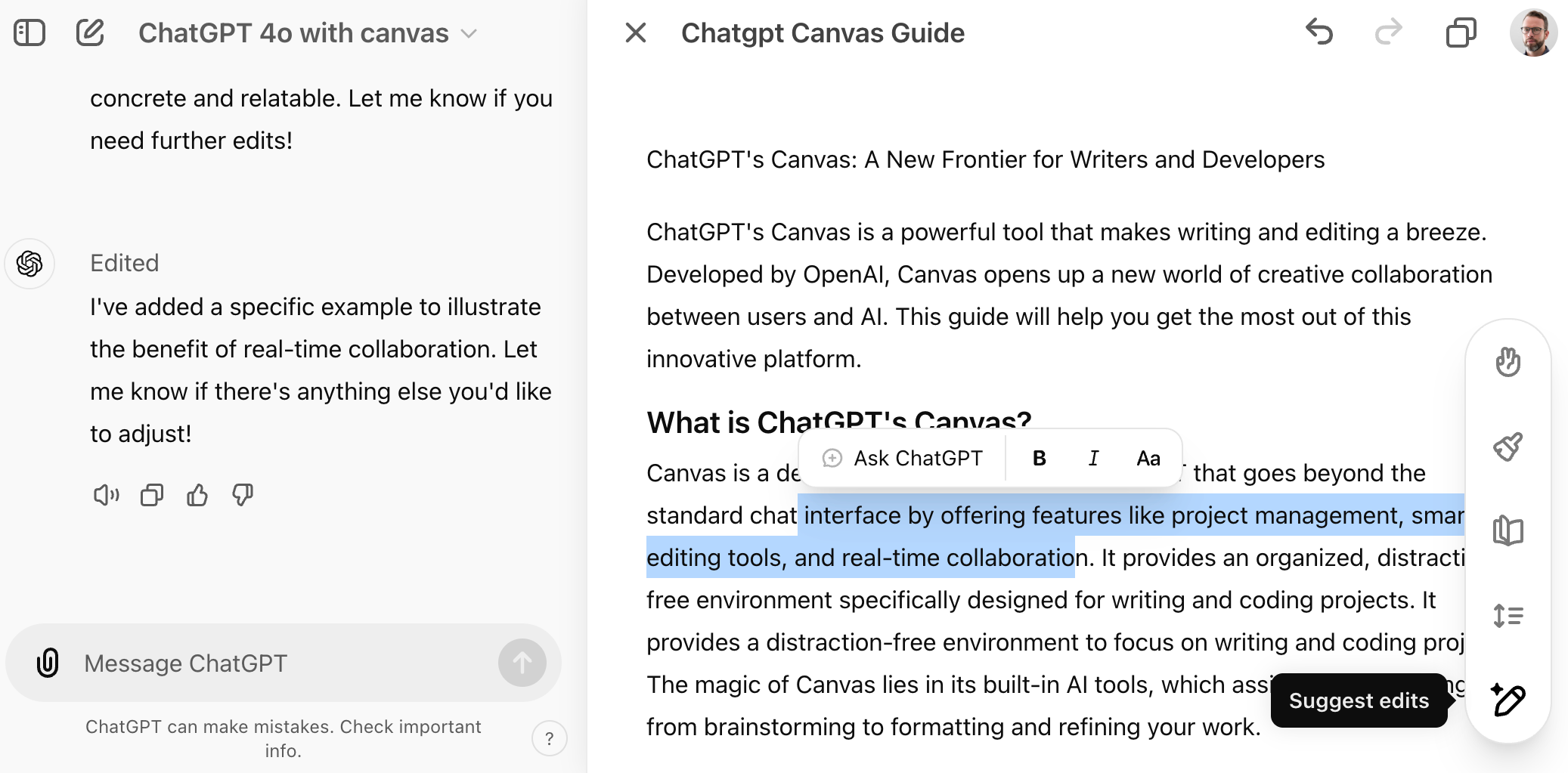
ChatGPT Canvas is a document-style workspace that opens alongside your chat.
Instead of responding inside a scrolling conversation, ChatGPT generates its output in a dedicated, editable document. You can then revise, refine, and iterate directly—without losing context or digging through old messages.
In simple terms:
- Chat = conversation
- Canvas = document
Canvas is designed for thinking and writing, not just answering.
Why ChatGPT Canvas Matters
Chat-based workflows have limits:
- Context gets buried
- Edits become messy
- Long content is hard to manage
- Iteration feels clumsy
Canvas removes those constraints.
It matters because it:
- Keeps long outputs organized
- Makes editing faster and more precise
- Preserves context across revisions
- Feels closer to working in a real document editor
If you use ChatGPT for writing or planning, Canvas is not optional—it’s foundational.
How ChatGPT Canvas Works
Here’s what happens when you use Canvas:
- You ask ChatGPT to “create a document” or “open this in canvas”
- ChatGPT generates the content in a side-by-side document view
- You can edit text directly inside the canvas
- You can highlight sections and request targeted changes
- ChatGPT refines only what you select—without rewriting everything
This is the key difference: local edits instead of global rewrites.
When You Should Use Canvas (And When You Shouldn’t)
Use Canvas when:
- Writing blog posts or long articles
- Editing drafts or refining tone
- Creating structured documents (guides, SOPs, scripts)
- Planning complex ideas
Don’t use Canvas when:
- Asking one-off questions
- Getting quick explanations
- Brainstorming casually
Canvas is for deliberate work, not quick chats.
Real-World Uses of ChatGPT Canvas

1. Long-Form Writing
Canvas shines for:
- Blog posts
- Guides
- Reports
- Documentation
You can:
- Draft once
- Edit section by section
- Refine tone without rewriting the whole piece
This is how serious content workflows scale.
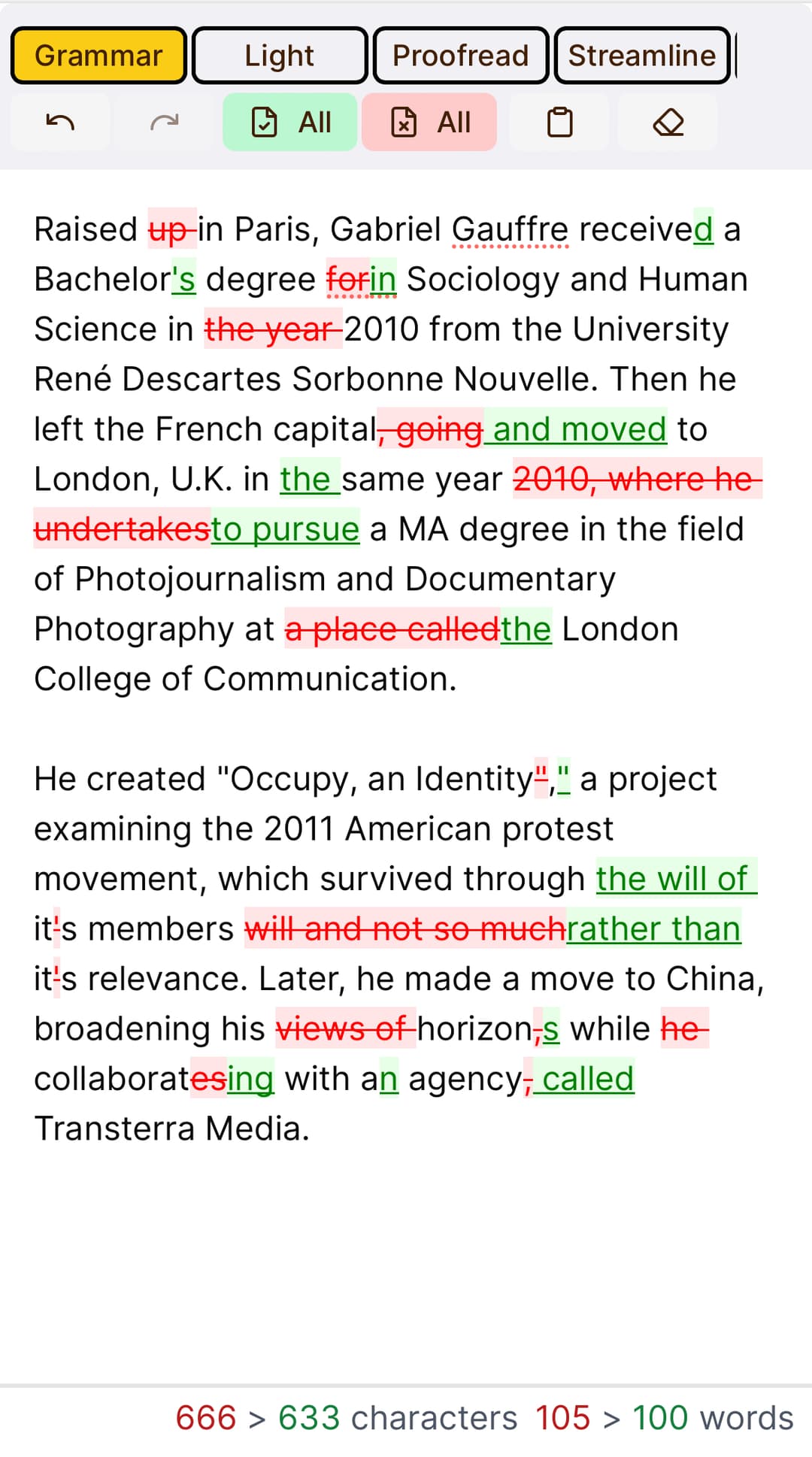
2. Editing and Refinement
Instead of saying:
“Rewrite the whole thing but better”
You can highlight a paragraph and say:
“Tighten this section and make it more concise.”
The result is controlled iteration, not chaos.
3. Thinking Through Complex Ideas
Canvas isn’t just for writing—it’s for thinking.
You can:
- Outline ideas
- Rearrange sections
- Add notes
- Ask ChatGPT to critique specific parts
This makes Canvas useful for strategy, planning, and analysis.
4. Collaborative-Style Revision (Solo)
Even if you’re working alone, Canvas mimics collaboration:
- Draft
- Review
- Revise
- Refine
ChatGPT acts like an editor instead of a responder.
Best Practices for Using ChatGPT Canvas
Ask for Canvas Explicitly
Say:
“Create this as a document.”
or
“Open this in canvas.”
Edit in Small Chunks
Highlight only what you want changed.
Smaller selections = better results.
Combine Canvas with Projects
Canvas works best inside ChatGPT Projects, where:
- Instructions persist
- Files stay available
- Context is consistent
For a full workflow foundation, see our pillar guide on how to use ChatGPT in 2026.
Don’t Treat Canvas Like Google Docs
Canvas is not a replacement for final publishing tools.
It’s a thinking and drafting environment, not a CMS.
Common Mistakes to Avoid
- Editing the entire document repeatedly
- Not highlighting text before asking for changes
- Expecting perfect output on the first pass
- Using Canvas for trivial tasks
Canvas rewards patience and iteration.
Limitations of ChatGPT Canvas
Canvas is powerful, but not perfect:
- Very long documents can still hit context limits
- Formatting options are basic
- It’s not designed for final layout or design
It’s a drafting and reasoning tool—not a publishing platform.
How Canvas Fits Into Modern AI Workflows
Canvas solves a specific problem:
How do you work with AI on long, evolving ideas?
As AI tools become more capable, structured output becomes essential. Canvas is OpenAI’s answer to that need.
If chat is conversation, Canvas is work.
FAQs
What is ChatGPT Canvas used for?
ChatGPT Canvas is used for writing, editing, and refining long-form content in a structured document format.
Is ChatGPT Canvas free?
Availability depends on your ChatGPT plan. Some advanced features may require a paid subscription.
Can I edit text directly in ChatGPT Canvas?
Yes. You can edit text manually and ask ChatGPT to revise specific highlighted sections.
Is Canvas better than normal chat?
For long or complex tasks, yes. For quick questions, normal chat is faster.
Final Takeaway
ChatGPT Canvas isn’t a flashy feature.
It’s a practical one.
If you write, plan, or think in long form, Canvas changes how you work with AI. It turns ChatGPT from something that responds into something that collaborates.
For the complete foundation, read our pillar guide on how to use ChatGPT in 2026, then build your workflows on top of it.
More ChatGPT Guides for 2026
- ChatGPT New Features March 2026: Every Update Explained
- ChatGPT Projects in 2026: How to Save 100+ Prompts
- 7 ChatGPT Features That Save 20+ Hours Every Week
- Stop Using ChatGPT Like This (Do This Instead)
- ChatGPT Voice Mode: I Used It for 30 Days While Driving
- How to Use ChatGPT in 2026: Complete Guide for Students


