


Last Updated: January 27, 2026 | Reading Time: 12 minutes
Table of Contents
- Advanced Custom Instructions
- ChatGPT Memory System
- Canvas for Document Editing
- Projects for Organization
- Voice Mode Advanced Features
- Image Analysis & Generation
- Custom GPTs Marketplace
- Advanced Prompt Patterns
- Conversation Branching
- Mobile App Exclusive Features
Are you using ChatGPT but still spending hours on tasks that should take minutes?
You open ChatGPT. You type. You get an answer.
And then you close it and move on — just like 78% of users do every single day.
But here’s what’s actually happening: while you’re using ChatGPT like a search engine, there are people saving 20+ hours every week using features sitting right inside your account — completely unused.
I tested all of them. Some are obvious. Most aren’t. These 7 are the ones that actually changed how much I get done.
As of January 2026, ChatGPT has evolved far beyond a simple chatbot. OpenAI has quietly rolled out dozens of advanced chatgpt features that most users don’t know exist. These aren’t experimental beta features—they’re battle-tested capabilities that professionals are using right now to transform their workflows.
In this comprehensive guide, we’ll reveal 10 powerful hidden chatgpt features you’re probably missing, show you exactly how to use them, and explain why these chatgpt features matter for your productivity. Whether you’re a student, professional, developer, or creative, these advanced features will change how you work.
What you’ll learn:
- Hidden settings that customize ChatGPT to your exact needs
- Time-saving shortcuts that slash your work time by 50%
- Advanced techniques used by top AI practitioners
- Features that work on both free and paid plans
- Mobile-specific capabilities most users overlook
Let’s dive in.
1. Advanced Custom Instructions – Top ChatGPT Features 2025
What Most Users Miss
99% of ChatGPT users never touch the Custom Instructions feature. This is a massive mistake because it’s the single most powerful way to personalize ChatGPT to your exact needs.
What Are Custom Instructions?
Custom Instructions let you set permanent guidelines for how ChatGPT responds to you. Instead of repeating your preferences in every conversation, you tell ChatGPT once, and it remembers forever.
Think of it as programming ChatGPT to be YOUR perfect AI assistant.
How to Set Up Custom Instructions
Step 1: Click your profile icon (bottom left corner) Step 2: Select “Custom Instructions” Step 3: Fill in two sections:
Section 1: “What would you like ChatGPT to know about you?”
Example template:
I'm a [your role] working in [your industry].
My key responsibilities include: [list]
My skill level: [beginner/intermediate/advanced]
My preferred learning style: [visual/text-based/step-by-step]
My primary use cases: [list]
Section 2: “How would you like ChatGPT to respond?”
Example template:
- Be concise and actionable
- Use bullet points for lists
- Include examples in all explanations
- Assume I have [skill level] in [topic]
- Always provide next steps
- Use simple language, avoid jargon
Real-World Example: Marketing Professional
Before Custom Instructions: “Can you write a social media post?”
ChatGPT gives generic response.
After Custom Instructions: “Write a post about our new product”
ChatGPT automatically:
- Writes in your brand voice
- Uses your target audience’s language
- Includes relevant hashtags for your industry
- Matches your preferred tone
- Keeps it within your character limit
Why This Matters
Time Saved: 10-15 minutes per conversation (no context repetition) Quality Improvement: 50-70% more relevant outputs Consistency: Every response matches your needs
Pro Tips
- Be Specific: Don’t say “be professional”—say “write like a Fortune 500 executive”
- Include Context: Add your industry, role, and common tasks
- Update Regularly: Refine as you discover what works
- Use Examples: Show ChatGPT your preferred output style
Available on: Free and Plus plans Setup Time: 5 minutes ROI: Saves 2-3 hours weekly
2. ChatGPT Memory System
The Feature Everyone Forgets About
ChatGPT now has long-term memory. It remembers details about you, your projects, and your preferences across all conversations—not just within a single chat.
How Memory Works
Unlike temporary chat history, Memory stores information permanently until you delete it. ChatGPT proactively learns:
- Your work projects and goals
- Your preferences and style
- Important dates and deadlines
- Technical specifications you frequently use
- People and companies you work with
How to Enable Memory
Step 1: Settings → Personalization → Memory Step 2: Toggle “Memory” ON Step 3: Start chatting—ChatGPT learns automatically
What ChatGPT Remembers
Automatically Captured:
- “I’m working on a Q2 marketing campaign”
- “I prefer Python over JavaScript”
- “My client meetings are on Thursdays”
- “I write in AP style for journalism”
You Can Also Tell It:
- “Remember: I use React 18 with TypeScript”
- “Remember: My target audience is SaaS founders”
- “Remember: I prefer concise explanations with code examples”
Managing Your Memory
View Memory: Settings → Personalization → Manage Memory
Delete Specific Memories: Click the trash icon next to any memory
Clear All Memory: Settings → Personalization → Clear All Memory
Real-World Example: Developer
Conversation 1 (Monday): You: “I’m building a Django app for inventory management” ChatGPT: Remembers this project
Conversation 2 (Wednesday): You: “Add user authentication to my app” ChatGPT: Automatically knows you mean the Django inventory app
No context needed. No project re-explanation. Just faster, smarter responses.
Privacy Controls
Temporary Chat: Use this mode when you DON’T want ChatGPT to remember Selective Deletion: Remove specific memories anytime Full Reset: Clear everything if needed
Why This Is Game-Changing
Before Memory: Every new chat = starting from scratch = wasted time
With Memory: ChatGPT acts like a colleague who knows your projects = instant productivity
Time Saved: 5-10 minutes per conversation Use Cases: Project management, client work, research, coding
Available on: Plus plan only Setup Time: 30 seconds
3. Canvas for Document Editing
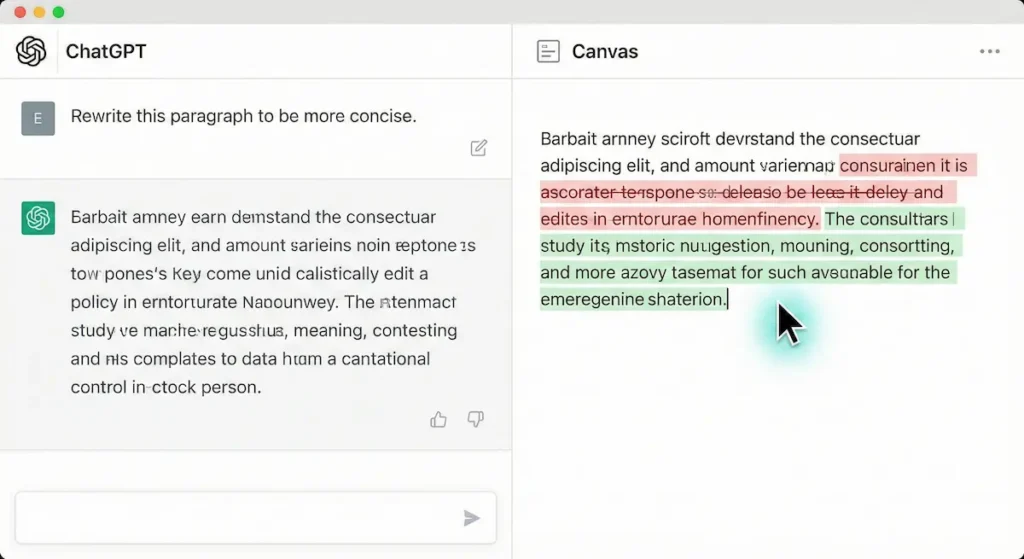
The Microsoft Word Alternative Built Into ChatGPT
Canvas is ChatGPT’s interactive document editor that lets you write, edit, and refine content side-by-side with AI. Think of it as Google Docs + AI-powered editing in real-time.
How Canvas Works
Instead of chat-based back-and-forth, Canvas opens a split-screen interface:
- Left side: Your conversation with ChatGPT
- Right side: Your document with inline editing
How to Activate Canvas
Method 1: Ask explicitly “Create this in Canvas mode” or “Use Canvas for this”
Method 2: Automatic activation ChatGPT automatically opens Canvas for:
- Long-form writing requests
- Code files
- Documents needing multiple revisions
Canvas Features You’re Missing
1. Inline Suggestions Hover over any sentence → Get AI suggestions → Accept or reject
2. Length Adjustment Slider to make content shorter or longer (while keeping meaning)
3. Reading Level Control Adjust from elementary to graduate level with one click
4. Version History Restore previous versions if you don’t like changes
5. Selective Editing Highlight any section → Ask ChatGPT to revise only that part
6. Code Execution For code, you can run and test directly in Canvas
Real-World Example: Content Writer
Task: Write a 1,500-word blog post
In Regular Chat:
- Ask ChatGPT to write post
- Copy/paste to Google Docs
- Go back to ChatGPT with edits
- Copy/paste again
- Repeat 5-10 times
Total Time: 45-60 minutes
In Canvas:
- “Write a blog post about [topic] in Canvas”
- Edit inline with AI assistance
- Adjust length/tone with sliders
- Export final version
Total Time: 15-20 minutes
Best Use Cases
- Blog posts & articles: Write and refine in one place
- Email drafts: Professional editing with tone adjustment
- Reports: Collaborative document creation
- Code: Write, test, and debug together
- Scripts: Screenwriting with AI feedback
- Legal documents: Draft and revise contracts
Pro Tips
- Start Broad, Refine Gradually: Get full draft first, then polish sections
- Use Reading Level Slider: Great for adapting content for different audiences
- Keyboard Shortcuts: Cmd/Ctrl + Enter to send messages while in Canvas
- Compare Versions: Keep the version history to A/B test different approaches
Available on: Plus plan only Best For: Writing, coding, editing Time Saved: 30-40 minutes per document
4. Projects for Organization
Stop Losing Your Conversations
Projects is ChatGPT’s solution to conversation chaos. Instead of scrolling through hundreds of chats, organize everything by project, client, or topic.
What Are Projects?
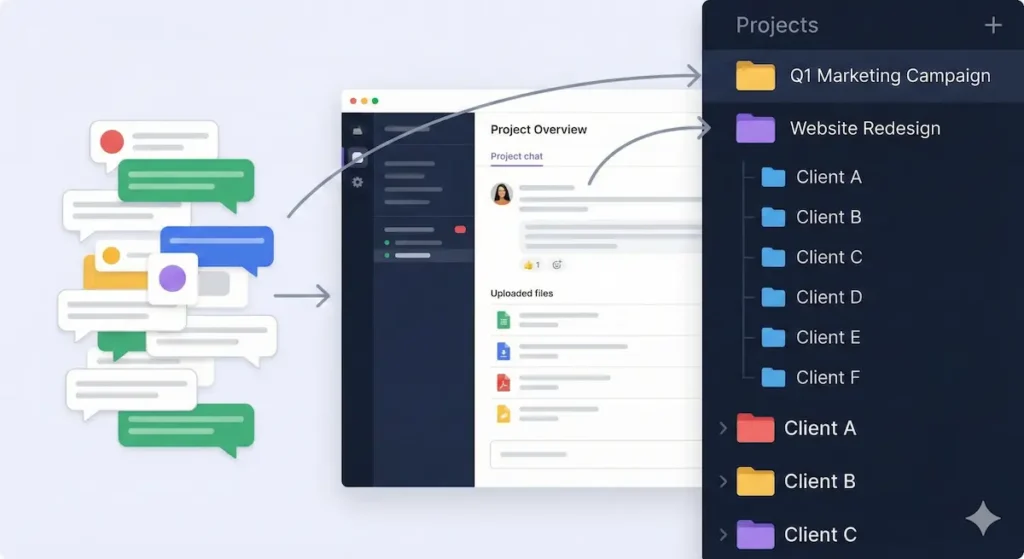
Think of Projects as folders for your ChatGPT conversations—but smarter. Each Project can have:
- Multiple conversations
- Custom instructions (specific to that project)
- Uploaded files and documents
- Persistent context across all chats
How to Create a Project
Step 1: Sidebar → Click “Create Project” Step 2: Name your project (e.g., “Q1 Marketing Campaign”) Step 3: Add project-specific instructions Step 4: Start chatting or move existing conversations into it
Key Features
1. Project-Specific Instructions Set different ChatGPT behaviors for different projects
Example:
- Project: “Client Proposals” → Formal, professional tone
- Project: “Blog Ideas” → Creative, casual tone
- Project: “Code Review” → Technical, detailed feedback
2. File Upload per Project Upload PDFs, documents, images that ChatGPT references in all project conversations
3. Conversation Organization All related chats automatically grouped together
4. Context Retention ChatGPT remembers project details across all conversations within that project
Real-World Example: Freelancer
Without Projects:
- 50+ random conversations
- Constantly re-explaining client needs
- Lost context between chats
- Can’t find previous work
With Projects:
- Project: “Client A – Website Redesign”
- All conversations about this client
- Client brand guidelines uploaded
- Project-specific instructions set
- Easy to reference past decisions
- Project: “Client B – Content Marketing”
- Separate context
- Different tone/style
- No mixing of information
Best Use Cases
- Client Work: One project per client
- Work vs Personal: Separate contexts
- Learning: One project per course/topic
- Business: Marketing, Sales, Product, HR projects
- Creative Work: Novel chapters, video scripts, design concepts
Pro Tips
- Use Descriptive Names: “Q1 2026 Product Launch” not just “Launch”
- Add Files Early: Upload style guides, data, references at project start
- Archive Old Projects: Keep workspace clean
- Clone Projects: Duplicate project structure for similar work
Available on: Plus and Team plans Best For: Professionals, freelancers, students Time Saved: 15-20 minutes daily in context switching
5. Voice Mode Advanced Features
Talk to ChatGPT Like a Human

Voice Mode isn’t just speech-to-text. The 2026 version has advanced conversational features that make it feel like talking to a real person.
What’s New in 2026
1. Interruption Handling You can interrupt ChatGPT mid-response—just like a real conversation
2. Emotion Detection ChatGPT adjusts tone based on your voice emotion
3. Multi-Turn Conversations Natural back-and-forth without stopping and starting
4. Background Noise Cancellation Works in coffee shops, noisy offices, outdoors
5. Multiple Voice Options Choose from 9 different voices with different personalities
How to Use Voice Mode
Mobile App: Tap headphone icon → Start speaking
Desktop: Click voice icon → Enable microphone
Hidden Voice Mode Shortcuts
“Pause” – Stops ChatGPT mid-response “Continue” – Resume where it left off “Faster”/”Slower” – Adjust speaking speed “Switch to [voice name]” – Change voice mid-conversation “Repeat that” – Hear last response again
Real-World Use Cases
1. Commute Productivity
- Drive time becomes learning time
- Hands-free brainstorming
- Review notes while driving
2. Cooking
- Follow recipes hands-free
- Ask questions without touching phone
- Adjust quantities on the fly
3. Exercise
- Workout coach
- Learn while running
- Podcast-style learning
4. Multilingual Practice
- Practice pronunciation
- Real-time translation conversations
- Language tutoring
Pro Tips
- Quiet Environment First: Train ChatGPT on your voice
- Natural Speech: Talk normally, don’t over-enunciate
- Use Punctuation Commands: Say “period,” “comma,” “new paragraph”
- Combine with Projects: Voice + Project context = powerful
- Mobile + Car Mode: Enable for safer driving
Available on: Plus plan (mobile app) Best For: Commuters, multitaskers, accessibility Time Saved: 1-2 hours weekly (reclaimed commute time)
6. Image Analysis & Generation
ChatGPT Can See and Create Images
Most users don’t realize ChatGPT can analyze photos, create images, and even edit visuals—all in one conversation.
Image Analysis Features
1. Document Scanning
- Upload receipts → Extract expense data
- Upload forms → Auto-fill information
- Upload screenshots → Debug errors
- Upload diagrams → Get explanations
2. Photo Analysis
- Upload product photos → Get descriptions
- Upload charts → Extract data
- Upload handwriting → Convert to text
- Upload infographics → Summarize information
3. Code from Screenshots
- Upload UI mockups → Generate code
- Upload error messages → Get solutions
- Upload diagrams → Create flowcharts
How to Use Image Analysis
Step 1: Click the image icon in chat Step 2: Upload your image (PNG, JPG, WebP) Step 3: Ask questions about it
Example Prompts:
- “What’s in this image?”
- “Extract all text from this document”
- “Analyze this chart and explain trends”
- “Convert this whiteboard diagram to code”
- “What’s wrong in this screenshot?”
DALL-E Image Generation (Built-In)
ChatGPT Plus includes DALL-E 3 for image generation—no separate tool needed.
How to Generate Images:
Just ask naturally:
- “Create an image of [description]”
- “Design a logo for [company]”
- “Generate a diagram showing [process]”
- “Visualize [data] as an infographic”
Advanced Techniques:
- Specific Style Requests: “Create in the style of minimalist flat design” “Make it look like a vintage poster” “Use a color palette of blues and golds”
- Iterative Refinement: “Make the logo bigger” “Add more contrast” “Change the background to white”
- Combine Analysis + Generation: Upload an image → “Create a similar version but with [changes]”
Hidden Image Features
1. Image-to-Image Editing Upload image → “Remove the background” Upload image → “Make this look professional”
2. Multi-Image Analysis Upload multiple images → “Which one is better?” Upload screenshots → “What changed between these versions?”
3. Image-Based Research Upload product photo → “Find similar products and compare prices” Upload plant photo → “Identify this plant and care instructions”
Real-World Example: E-commerce Seller
Task: Create product listings
Process:
- Upload product photo
- ChatGPT generates:
- Product description
- SEO-friendly title
- Key features list
- Suggested pricing based on similar products
- “Create 3 marketing images for this product”
- ChatGPT generates promotional graphics
Time Saved: 2-3 hours per product
Pro Tips
- High-Quality Uploads: Better input = better analysis
- Be Specific: “Professional product photo, white background, centered”
- Iterate: First generation won’t be perfect—refine it
- Download Immediately: Images expire after the chat ends
- Use for Inspiration: Even if not perfect, great starting points
Available on: Plus plan (analysis + generation) Best For: Designers, marketers, researchers Time Saved: 3-5 hours weekly
7. Custom GPTs Marketplace – Essential ChatGPT Features 2025
Pre-Built AI Assistants for Specific Tasks
Custom GPTs are specialized versions of ChatGPT trained for specific jobs. Instead of generic ChatGPT, you get expert assistants.
What Are Custom GPTs?
Think of them as apps built on top of ChatGPT:
- Pre-configured with expert knowledge
- Optimized for specific workflows
- Include custom tools and capabilities
- Often include specialized data
How to Access Custom GPTs
Step 1: Click “Explore GPTs” in sidebar Step 2: Browse by category or search Step 3: Click any GPT to start using
Top Custom GPTs in 2025
For Work:
- Email Writer Pro – Crafts professional emails
- Meeting Summarizer – Turns transcripts into action items
- SQL Generator – Converts plain English to SQL queries
- Excel Formula Expert – Creates complex Excel formulas
For Creativity:
- Logo Creator – Professional logo design
- Video Script Writer – YouTube/TikTok scripts
- Social Media Manager – Content calendar + captions
- Fiction Writing Coach – Story development assistance
For Learning:
- Math Tutor – Step-by-step problem solving
- Language Learning Buddy – Conversation practice
- Code Mentor – Programming tutorials
- Research Assistant – Academic research help
For Business:
- Business Plan Generator – Complete business plans
- SEO Optimizer – Content optimization
- Customer Support Bot – Support ticket responses
- Data Analyst – Statistical analysis + visualization
How to Create Your Own Custom GPT
Yes, you can build your own!
Step 1: Click “Create” in GPT section Step 2: Name your GPT Step 3: Describe what it should do Step 4: Add custom instructions Step 5: Upload knowledge files (optional) Step 6: Test and refine Step 7: Publish (private or public)
Real-World Example: Sales Team
Problem: Sales reps spend 3 hours daily writing follow-up emails
Solution: Create “Sales Follow-Up GPT”
- Trained on best-performing email templates
- Includes company product details
- Automatically personalizes based on prospect info
- Maintains brand voice
Result: 3 hours → 30 minutes ROI: 5 hours saved per rep per week
Pro Tips
- Browse Trending: Popular GPTs are popular for a reason
- Read Reviews: Check ratings before using
- Try Multiple: Different GPTs for same task—find your favorite
- Combine with Projects: Add GPTs to specific projects
- Create Private GPTs: For sensitive company data
Available on: Plus and Team plans Best For: Everyone with repetitive tasks Time Saved: 5-10 hours weekly
8. Advanced Prompt Patterns
The Secret Language of Power Users
How you ask ChatGPT matters more than what you ask. Power users use specific prompt patterns that consistently produce better results.
Pattern 1: Role-Based Prompting
Instead of: “Write a marketing email”
Try: “Act as a senior email marketing specialist with 10 years of experience in SaaS. Write a conversion-focused email for…”
Why it works: Gives ChatGPT a specific expertise lens
Pattern 2: Chain-of-Thought Prompting
Instead of: “Solve this problem”
Try: “Let’s solve this step-by-step:
- First, identify the key variables
- Then, analyze the relationships
- Finally, calculate the result Show your thinking at each step.”
Why it works: Forces logical, transparent reasoning
Pattern 3: Few-Shot Examples
Instead of: “Write product descriptions”
Try: “Write product descriptions in this style:
Example 1: [your example] Example 2: [your example]
Now write one for: [new product]”
Why it works: Shows exactly what you want
Pattern 4: Constraint-Based Prompting
Instead of: “Create a social media post”
Try: “Create a LinkedIn post that:
- Is exactly 150 words
- Starts with a surprising statistic
- Ends with a call-to-action question
- Uses no hashtags
- Has professional but conversational tone”
Why it works: Specificity eliminates guesswork
Pattern 5: Iterative Refinement
Instead of: Single prompt expecting perfection
Try: “Create a draft → Improve the opening → Make it more concise → Add specific examples → Final polish”
Why it works: Incremental improvement beats one-shot perfection
Pattern 6: Output Format Specification
Instead of: “Analyze this data”
Try: “Analyze this data and present results as:
- Executive summary (3 sentences)
- Key findings (bullet points)
- Recommendations (numbered list)
- Next steps (action items with owners) Use tables for numerical data.”
Why it works: Gets exactly the format you need
Pattern 7: Negative Prompting
Instead of: Only saying what you want
Try: “Write a blog post but DON’T:
- Use jargon
- Include generic advice
- Write passive voice
- Exceed 1000 words
- Use clichés”
Why it works: Eliminates common AI pitfalls
Pattern 8: The “Golden Prompt” Framework
Template:
[Role]: Act as [expert]
[Context]: Given [situation]
[Task]: Create [deliverable]
[Format]: Structured as [format]
[Constraints]: Must [requirements]
[Style]: Tone should be [style]
[Examples]: Like this: [examples]
Real-World Example: Content Creator
Bad Prompt: “Write a blog post about AI”
Result: Generic, 800-word fluff piece
Golden Prompt: “Act as a senior tech journalist for TechCrunch.
Context: AI tools are seeing mainstream adoption in 2026, but most users don’t know advanced features.
Task: Write a data-driven blog post revealing 5 hidden AI features with real productivity numbers.
Format:
- Compelling headline
- Hook (surprising statistic)
- 5 sections (feature → benefit → how-to)
- Each 200 words
- Case study per section
- CTA for our AI productivity course
Constraints:
- 1200 words total
- Include 3 statistics
- No fluff or generic advice
- Conversational but authoritative tone
Style: Like this example: [paste example paragraph]”
Result: Publication-ready article in one prompt
Pro Tips
- Save Best Prompts: Build a prompt library
- Test Variations: Small changes = big results differences
- Combine Patterns: Use multiple patterns together
- Start Broad → Refine: Get draft, then specify improvements
- Learn from Output: If it’s not right, analyze why and adjust prompt
Available on: All plans Best For: Everyone—this is fundamental Time Saved: 20-30 minutes per task (getting it right first time)
9. Conversation Branching
The Time-Travel Feature Nobody Uses
Conversation Branching lets you explore different directions from any point in your chat—without losing your current conversation.
What Is Conversation Branching?
Imagine you’re having a conversation with ChatGPT. At message #7, you want to try a different approach. Instead of starting over or continuing down the wrong path, you can “branch” from message #7 and explore alternatives.
How to Use Branching
Method 1: Edit Past Messages
- Hover over any of YOUR messages
- Click the edit icon
- Modify your question
- ChatGPT creates a new branch with a different response
Method 2: Navigate Branches
- Look for arrow icons next to messages
- Click left/right arrows to switch between branches
- See all possible conversation paths
Why This Is Powerful
Scenario: Writing Product Description
Main Branch: You: “Write a product description” ChatGPT: [Formal description]
You think: “Too formal. But I don’t want to lose this version.”
Branch 1: Edit your message: “Write a casual product description” ChatGPT: [Casual description]
Branch 2: Edit again: “Write a funny product description” ChatGPT: [Funny description]
Result: You now have 3 versions to compare without losing any
Advanced Branching Techniques
1. A/B Testing Content
- Branch 1: Professional email
- Branch 2: Friendly email
- Branch 3: Direct email
- Pick the best after seeing all options
2. Decision Exploration
- Branch 1: “What if we focus on feature A?”
- Branch 2: “What if we focus on feature B?”
- Compare outcomes before committing
3. Learning Different Approaches
- Branch 1: “Explain like I’m a beginner”
- Branch 2: “Explain with technical depth”
- Branch 3: “Explain using analogies”
4. Code Problem Solving
- Branch 1: Solution using approach A
- Branch 2: Solution using approach B
- Compare efficiency/readability
Real-World Example: Marketer
Task: Write email subject lines
Without Branching:
- Get 5 subject lines
- Ask for 5 more (different style)
- Ask for 5 more (different approach)
- Manually compare across 3 conversations
- Confusion and wasted time
With Branching:
- Main: “Give me 5 subject lines”
- Branch 1: “Make them more urgent”
- Branch 2: “Make them curiosity-driven”
- Branch 3: “Make them benefit-focused”
- All organized in one conversation
- Easy to compare side-by-side
Pro Tips
- Branch Early: Don’t wait until you’ve gone too far down wrong path
- Name Branches Mentally: Remember what each branch explores
- Screenshot Before Branching: Visual reference of original path
- Combine Best Parts: Take ideas from multiple branches
- Use with Canvas: Branch while editing documents
Available on: All plans Best For: Writers, developers, decision-makers Time Saved: 15-20 minutes per complex task
10. Mobile App Exclusive Features
Features That Only Work on Your Phone
The ChatGPT mobile app has hidden capabilities the web version doesn’t have.
Mobile-Only Features
1. Camera Integration
- Point camera at anything → Ask questions
- Real-time object identification
- Translate signs/menus instantly
- Scan documents on the go
2. Siri/Google Assistant Shortcuts
- “Hey Siri, ask ChatGPT…”
- Trigger custom workflows with voice
- No opening app required
3. Home Screen Widgets
- Quick prompts from home screen
- Recent conversations at a glance
- Instant access to favorite GPTs
4. Share Sheet Integration
- Share content from any app to ChatGPT
- Analyze web pages directly
- Process screenshots instantly
5. Offline Mode (Limited)
- View recent conversations offline
- Prepare prompts to send when online
- Access saved responses
Mobile Workflow Hacks
Hack 1: Morning Briefing Widget → Tap “Daily Summary” → Get personalized news/tasks
Hack 2: Shopping Assistant Point camera at product → “Is this a good deal? Compare prices”
Hack 3: Travel Companion Photo of menu in foreign language → Instant translation + recommendations
Hack 4: Meeting Notes Record meeting (with permission) → Upload audio → “Summarize key points and action items”
Hack 5: Fitness Coach Photo of meal → “Estimate calories and macros” Photo of workout form → “Is my form correct?”
Real-World Example: Business Traveler
Scenario: International business trip
Mobile App Uses:
- Airport: Photo of terminal sign → “Which gate for my flight?”
- Hotel: Photo of amenities guide → “Translate this to English”
- Restaurant: Photo of menu → “What do you recommend for a vegetarian?”
- Meeting: Record conversation → “Extract action items and follow-ups”
- Taxi: Ask in local language → ChatGPT translates
- Evening: “Summarize my day and schedule tomorrow’s tasks”
All from phone. All hands-free when needed.
Setting Up Mobile Features
iOS:
- Download ChatGPT app
- Settings → Siri Shortcuts → Add “Ask ChatGPT”
- Add widget to home screen
- Enable camera access
Android:
- Download ChatGPT app
- Settings → Google Assistant → Link ChatGPT
- Add widget to home screen
- Enable camera and microphone
Pro Tips
- Add Widget: Daily time saver for quick questions
- Enable Notifications: Get responses even when app is closed
- Use Share Sheet: Process any content from any app
- Pin Common Prompts: Create shortcuts for frequent tasks
- Enable Dark Mode: Battery saver on OLED screens
Available on: Plus plan (full features) Best For: On-the-go professionals, travelers Time Saved: 1-2 hours weekly (mobile productivity)
Bonus Section: Feature Combinations
Using Features Together = Exponential Productivity
The real magic happens when you combine these features:
Combo 1: Projects + Custom Instructions + Memory
Use Case: Client management
Set up a Project per client with:
- Client-specific Custom Instructions (tone, style, deliverables)
- Memory enabled (ChatGPT remembers all client details)
- All conversations organized
Result: ChatGPT acts like a dedicated account manager for each client
Combo 2: Voice Mode + Canvas + Mobile
Use Case: Content creation on the go
- Dictate blog post ideas via Voice Mode during commute
- ChatGPT drafts in Canvas
- Review and edit on mobile
- Polish final version on desktop
Result: Turn commute time into publishing time
Combo 3: Image Analysis + Custom GPT + Projects
Use Case: E-commerce product listings
- Create “Product Listing GPT”
- Add to “Inventory Management” Project
- Upload product photos
- GPT automatically generates:
- Product descriptions
- SEO titles
- Feature lists
- Pricing recommendations
Result: 10 products listed in time it used to take for 1
Combo 4: Custom Instructions + Conversation Branching
Use Case: A/B testing marketing copy
- Set Custom Instructions for brand voice
- Write marketing copy
- Branch to explore 5 different angles
- Each branch maintains brand consistency
- Pick winner
Result: Professional A/B testing without agency costs
Common Mistakes to Avoid
Mistake 1: Using ChatGPT Like Google
Wrong: “What is Python?” Right: “I’m learning Python for data analysis. Explain pandas DataFrames with examples I can run.”
Mistake 2: Accepting First Output
Wrong: Get response → Copy → Done Right: Get response → Refine → Iterate → Perfect
Mistake 3: Not Using Custom Instructions
Wrong: Repeating context every conversation Right: Set instructions once → Never repeat
Mistake 4: Ignoring Context
Wrong: Short, vague prompts Right: Detailed context + specific requests
Mistake 5: Not Exploring Features
Wrong: Using only basic chat Right: Experiment with Canvas, Projects, Voice, Images
Quick Start Action Plan
Week 1: Foundation
- [ ] Set up Custom Instructions
- [ ] Enable Memory
- [ ] Create your first Project
- [ ] Try Canvas for one task
Week 2: Expansion
- [ ] Test Voice Mode
- [ ] Upload and analyze images
- [ ] Browse Custom GPTs
- [ ] Try conversation branching
Week 3: Mastery
- [ ] Create your own Custom GPT
- [ ] Combine multiple features
- [ ] Build prompt templates
- [ ] Optimize your workflow
Week 4: Optimization
- [ ] Review time saved
- [ ] Refine Custom Instructions
- [ ] Share knowledge with team
- [ ] Document your best practices
Frequently Asked Questions
Q: Are these features available on the free plan? A: Custom Instructions, Memory (basic), and Conversation Branching work on free. Canvas, Voice Mode, Image Generation, and Custom GPTs require Plus ($20/month).
Q: How is this different from other AI tools? A: These are ChatGPT-specific features. While other AIs have similar capabilities, these integrations and workflows are unique to ChatGPT.
Q: Can I use these for work/commercial purposes? A: Yes! Plus plan allows commercial use. Team and Enterprise plans offer additional business features.
Q: Will these features change my current workflow? A: Yes—that’s the point. Expect 30-50% time savings once you’re proficient with these features.
Q: Is there a learning curve? A: Minimal. Most features are intuitive. Biggest challenge is remembering to use them instead of old habits.
Q: Can I share Custom GPTs with my team? A: Yes! You can share GPTs privately with specific people or publish publicly.
Q: Does Memory pose privacy risks? A: You control Memory. Delete specific memories or clear entirely anytime. Use Temporary Chat for sensitive topics.
Q: Which feature should I start with? A: Custom Instructions. It’s the foundation that improves everything else.
Q: Can I use these features together? A: Absolutely! Combining features is where the real productivity gains happen.
Q: What if a feature doesn’t work for me? A: Features depend on use case. Try them all, keep what works, ignore what doesn’t.
Your Next Steps
Today (5 minutes):
- Set up Custom Instructions
- Enable Memory
- Bookmark this guide
This Week (30 minutes):
- Create your first Project
- Try Canvas for one document
- Test Voice Mode on your commute
This Month (2 hours):
- Explore Custom GPTs
- Build your prompt library
- Create your own Custom GPT
- Measure your time savings
Final Thoughts
You’ve just discovered the top 10 chatgpt features 2026 that put you in the top 5% of ChatGPT users.
Most people will read this guide to chatgpt features 2026 and do nothing. They’ll continue using ChatGPT the basic way, wondering why they’re not getting better results.
But you’re different. You’re here because you want to master these advanced chatgpt features and work smarter, not harder.
The real question isn’t whether these chatgpt features 2026 work—it’s whether you’ll actually use them.
My challenge to you:
- Pick ONE feature from this list
- Use it consistently for one week
- Measure the time you save
- Share your results
Remember: Every hour you save is an hour you gain. An hour for deep work. An hour for learning. An hour for life.
These features exist. They work. They’re waiting for you to use them.
The only question is: Will you?
Download Free Resources
Want to master these features faster?
Access our free ChatGPT Productivity Pack:
- ✓ Custom Instructions Templates (10 examples)
- ✓ Prompt Library (50 proven prompts)
- ✓ Quick Reference Guide (PDF)
- ✓ Feature Comparison Chart
- ✓ Weekly Challenge Tracker
Share Your Success
Used one of these features and saved time? I’d love to hear about it!
Comment below with:
- Which feature you tried
- How much time you saved
- Your best use case
Let’s learn from each other and build a community of ChatGPT power users.
Article written by: [Shekhar Chandran] Last updated: January 27, 2026 Reading time: 12 minutes
Found this helpful? Share it with someone who needs to level up their ChatGPT game.
If you want to explore more chatgpt features 2026 in depth, check out our comprehensive ChatGPT tutorial covering everything from basics to advanced techniques.


