
Last Updated: Feb 2, 2026 | Reading Time: 12 minutes | Difficulty: Beginner to Intermediate
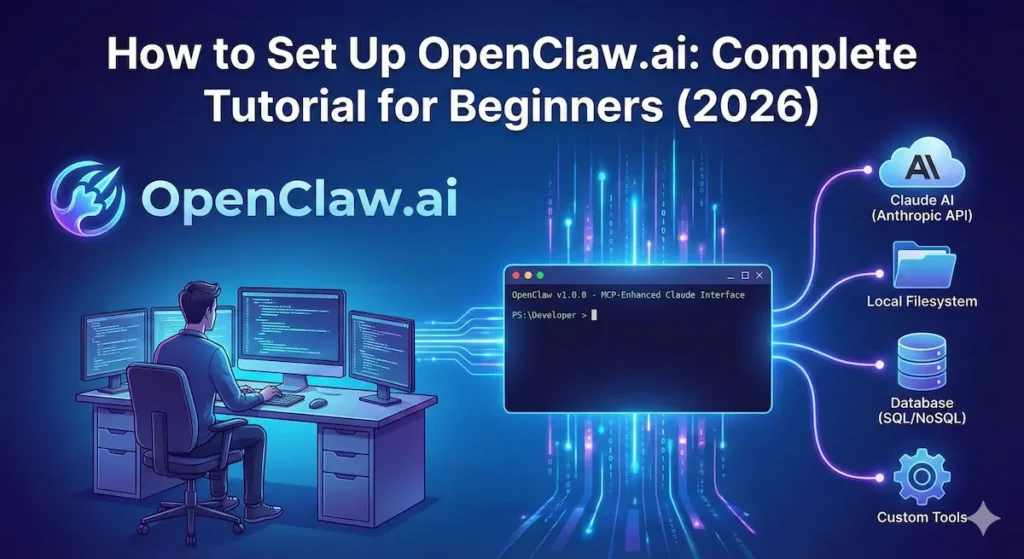
OpenClaw.ai is revolutionizing how developers interact with Claude AI through the Model Context Protocol (MCP). Instead of being limited to the standard Claude.ai interface, OpenClaw lets you extend Claude with custom tools, connect to your databases, automate workflows, and build powerful AI agents—all through an open-source, customizable interface.
This comprehensive tutorial will walk you through everything from installation to building your first custom MCP tools, even if you’ve never worked with AI APIs before.
Table of Contents
What You’ll Learn:
- What OpenClaw.ai is and why it matters
- How to install and configure OpenClaw
- Setting up your first MCP server
- Connecting Claude to your local files and databases
- Building custom tools for Claude
- Real-world use cases and examples
- Troubleshooting common issues
Prerequisites:
- Computer with Windows, Mac, or Linux
- Basic command line knowledge (we’ll guide you through it)
- Anthropic API key (we’ll show you how to get one)
- 30-60 minutes of setup time
What is OpenClaw.ai?
The Problem It Solves
Standard Claude.ai is powerful but limited:
- ❌ Can’t access your local files or databases
- ❌ Can’t run custom code or scripts
- ❌ Can’t integrate with your internal tools
- ❌ Can’t automate complex workflows
- ❌ Limited to what Anthropic provides
The OpenClaw Solution
OpenClaw.ai is an open-source MCP (Model Context Protocol) client that unlocks Claude’s full potential:
- ✅ Local file access: Claude can read and edit files on your computer
- ✅ Database connections: Query SQL, MongoDB, PostgreSQL directly
- ✅ Custom tools: Build any tool Claude can use
- ✅ API integrations: Connect Claude to any API
- ✅ Automation: Create AI-powered workflows
- ✅ Full control: Self-hosted, private, customizable
Think of it as: Claude.ai Pro + unlimited custom superpowers
Understanding Model Context Protocol (MCP)
Before we dive into setup, let’s understand what makes OpenClaw special.
What is MCP?
Model Context Protocol (MCP) is Anthropic’s standardized way for AI models to interact with external tools and data sources. It’s like giving Claude a universal adapter that can plug into anything.
MCP Architecture:
Your Computer
    │
    ├── OpenClaw Client (UI you interact with)
    │
    ├── Claude AI (via Anthropic API)
    │
    └── MCP Servers (tools Claude can use)
        ├── File System Server
        ├── Database Server
        ├── GitHub Server
        ├── Custom Tools
        └── Any API you build
Why This Matters
Example without MCP (Standard Claude.ai):
- You: “Analyze the sales data in my database”
- Claude: “I can’t access databases. Please copy the data here.”
- You: Manually exports data, pastes into chat
- Claude: Analyzes the pasted data
Example with OpenClaw + MCP:
- You: “Analyze the sales data in my database”
- Claude: Directly queries your database via MCP server
- Claude: “I’ve analyzed your sales data. Here are the insights…”
The difference: Claude acts like a junior developer with full system access, not just a chatbot.
Part 1: Getting Your API Key
Before installing OpenClaw, you need an Anthropic API key.
Step 1: Create Anthropic Account
- Go to console.anthropic.com
- Click “Sign Up”
- Use your email or Google account
- Verify your email
Step 2: Add Payment Method
Important: The API is pay-as-you-go (not free tier)
- Click your profile icon → “Billing”
- Add credit card or payment method
- Add credits (recommended: $20 to start)
Pricing (as of 2026):
- Claude Sonnet: $3 per million input tokens, $15 per million output tokens
- Typical usage: $5-20/month for moderate personal use
- Much cheaper than Claude Pro ($20/month) if you use it occasionally
Step 3: Generate API Key
- Go to “API Keys” in the console
- Click “Create Key”
- Name it: “OpenClaw Local”
- Copy the key immediately (you can’t see it again!)
- Store it safely (we’ll use it in setup)
Your API key looks like: sk-ant-api03-xxx...
⚠️ Security Warning:
- Never share your API key
- Never commit it to GitHub
- Never paste it in public chats
- Treat it like a password
Part 2: Installing OpenClaw
System Requirements
- Operating System: Windows 10+, macOS 10.15+, or Linux
- Node.js: Version 18 or higher
- RAM: 4GB minimum (8GB recommended)
- Storage: 500MB free space
- Internet: Required for API calls
Option 1: Install via NPM (Recommended)
Step 1: Install Node.js
If you don’t have Node.js installed:
Windows/Mac:
- Go to nodejs.org
- Download the LTS version
- Run the installer
- Accept all defaults
Verify installation:
node --version
npm --version
You should see version numbers (e.g., v20.11.0).
Step 2: Install OpenClaw
Open your terminal (Command Prompt on Windows, Terminal on Mac/Linux):
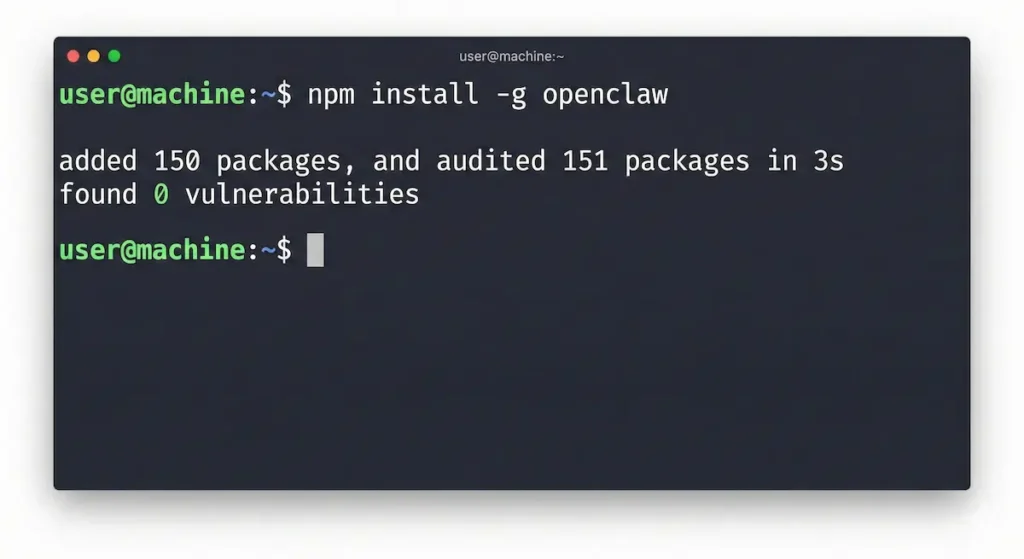
npm install -g openclaw
What this does:
- Downloads OpenClaw from npm registry
- Installs it globally (
-gflag) - Makes
openclawcommand available everywhere
Verify installation:
openclaw --version
You should see: OpenClaw v1.x.x
Option 2: Install from Source (Advanced)
For developers who want to customize OpenClaw:
# Clone the repository
git clone https://github.com/openclaw/openclaw.git
cd openclaw

# Install dependencies
npm install

# Build the project
npm run build

# Link globally
npm link
Common Installation Issues
Issue: “npm command not found”
- Solution: Node.js not installed correctly. Reinstall from nodejs.org
Issue: “Permission denied” on Mac/Linux
- Solution: Use
sudo npm install -g openclaw
Issue: “EACCES” error
- Solution: Fix npm permissions: docs.npmjs.com/resolving-eacces-permissions-errors
Part 3: Configuring OpenClaw
Step 1: Initialize Configuration
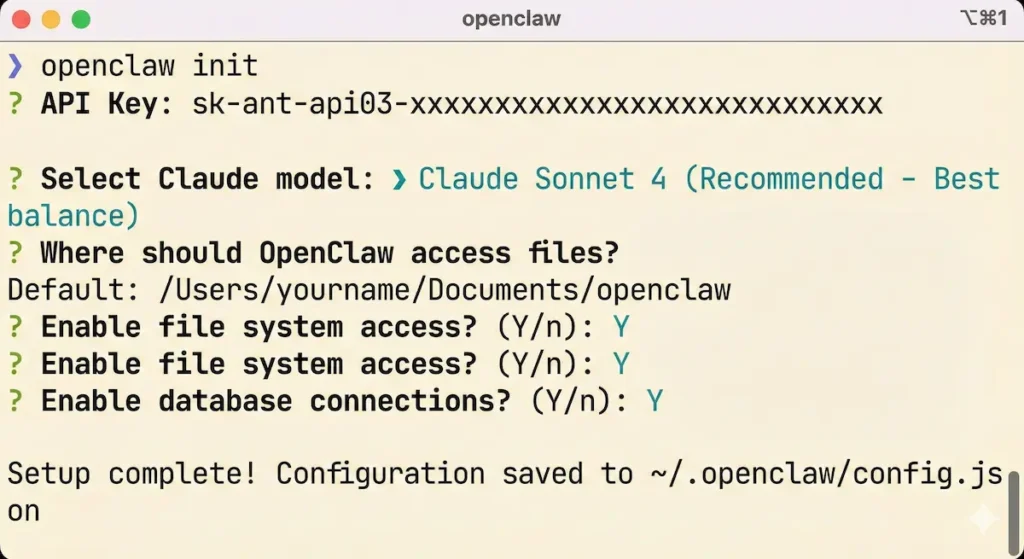
Run the setup wizard:
openclaw init
The wizard will ask:
1. Enter your Anthropic API key:
? API Key: sk-ant-api03-xxxxx...
Paste your API key from Part 1
2. Choose your model:
? Select Claude model:
  ❯ Claude Sonnet 4 (Recommended - Best balance)
    Claude Opus 4 (Most capable - Expensive)
    Claude Haiku 4 (Fastest - Cheapest)
Choose Sonnet unless you have specific needs
3. Set working directory:
? Where should OpenClaw access files?
  Default: /Users/yourname/Documents/openclaw
Press Enter for default, or specify custom path
4. Enable MCP servers:
? Enable file system access? (Y/n): Y
? Enable database connections? (Y/n): Y
? Enable GitHub integration? (Y/n): n
Enable what you need (you can change later)
Setup complete! Configuration saved to ~/.openclaw/config.json
Step 2: Verify Configuration
openclaw config show
You should see:
{
  "apiKey": "sk-ant-***hidden***",
  "model": "claude-sonnet-4-20250514",
  "workingDirectory": "/Users/yourname/Documents/openclaw",
  "mcpServers": {
    "filesystem": {
      "enabled": true,
      "rootPath": "/Users/yourname/Documents/openclaw"
    },
    "database": {
      "enabled": true,
      "connections": []
    }
  }
}
Step 3: Test Your Setup
openclaw test
Expected output:
✓ API key valid
✓ Connected to Claude Sonnet 4
✓ File system MCP server running
✓ Database MCP server running
✓ All systems operational

OpenClaw is ready to use!
Part 4: Your First OpenClaw Session
Starting OpenClaw
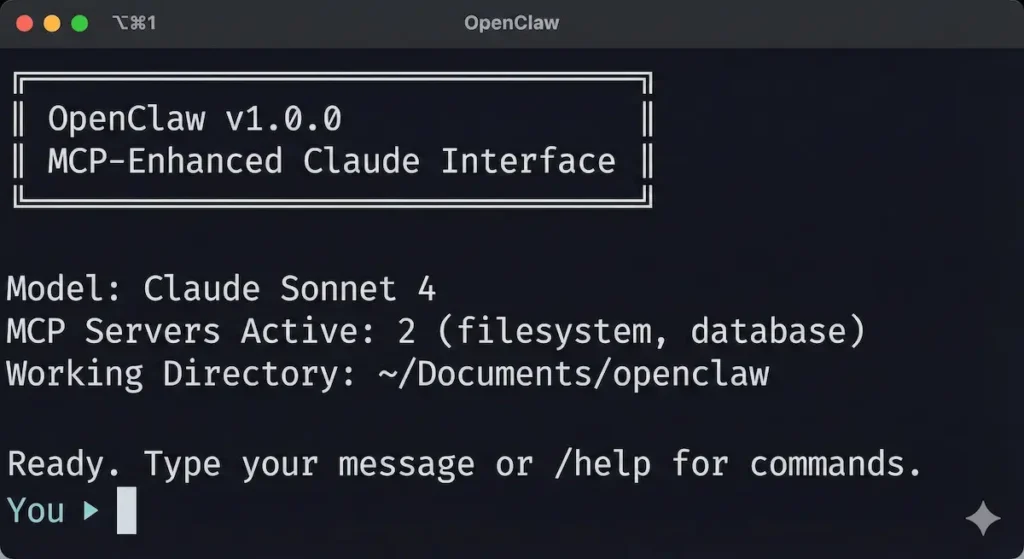
openclaw
You’ll see:
╔═══════════════════════════════════════╗
║         OpenClaw v1.0.0               ║
║   MCP-Enhanced Claude Interface       ║
╚═══════════════════════════════════════╝

Model: Claude Sonnet 4
MCP Servers Active: 2 (filesystem, database)
Working Directory: ~/Documents/openclaw

Ready. Type your message or /help for commands.

You ▸
Basic Commands
Chat with Claude:
You ▸ Hello! What can you help me with?

Claude ▸ Hello! With OpenClaw and MCP, I can help you with:

1. File Operations:
   - Read, write, edit files
   - Search through documents
   - Analyze code repositories

2. Database Queries:
   - Query SQL databases
   - Analyze data
   - Generate reports

3. Automation:
   - Run scripts
   - Process data pipelines
   - Schedule tasks

What would you like to work on?
Important Slash Commands:
/help– Show all commands/clear– Clear conversation/config– Show current configuration/servers– List active MCP servers/exit– Quit OpenClaw
Example: File System Access
Create a test file first:
# In another terminal
cd ~/Documents/openclaw
echo "Sales 2025: $1,000,000" > sales.txt
echo "Sales 2026: $1,500,000" >> sales.txt
Now in OpenClaw:
You ▸ Read the sales.txt file and tell me the growth rate

Claude ▸ Let me read that file for you.

[MCP: filesystem.read_file("sales.txt")]

I've read the sales data:
- 2025: $1,000,000
- 2026: $1,500,000

Growth rate: 50% increase from 2025 to 2026.

The business grew by $500,000, which represents a healthy
50% year-over-year growth rate.
What happened behind the scenes:
- You asked about a file
- Claude recognized it needed file access
- Claude called the
filesystemMCP server - The server read
sales.txtfrom your working directory - Claude received the content and analyzed it
This is MCP in action! Claude autonomously used tools to help you.
Part 5: Setting Up Database Connections
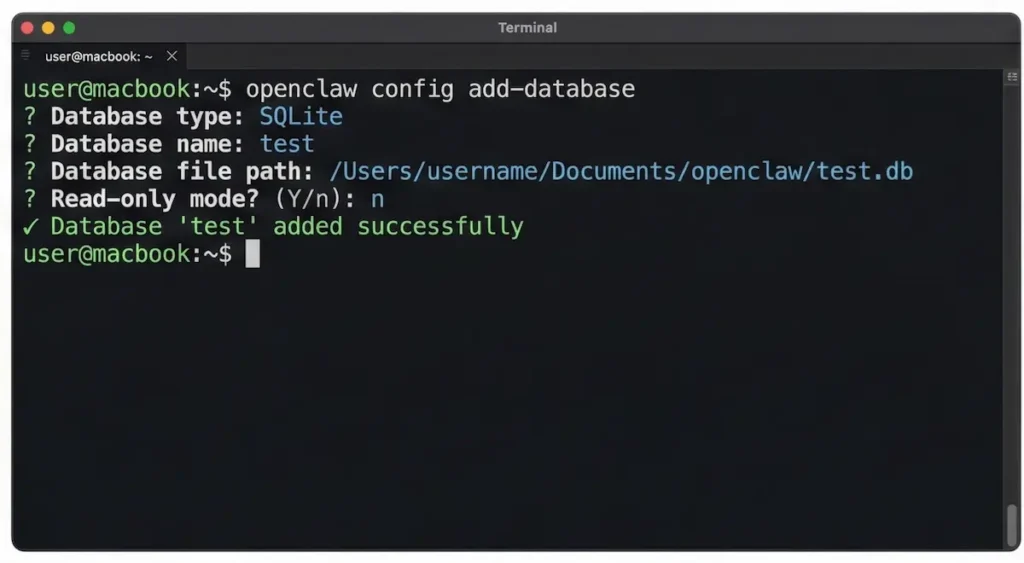
One of OpenClaw’s most powerful features is direct database access.
Connecting to SQLite (Easiest)
Step 1: Create a test database
cd ~/Documents/openclaw
sqlite3 test.db << EOF
CREATE TABLE customers (
    id INTEGER PRIMARY KEY,
    name TEXT,
    email TEXT,
    revenue INTEGER
);

INSERT INTO customers VALUES
(1, 'Acme Corp', '[email protected]', 50000),
(2, 'TechStart Inc', '[email protected]', 75000),
(3, 'DataCo', '[email protected]', 120000);
EOF
Step 2: Add database to OpenClaw
openclaw config add-database
Configuration wizard:
? Database type: SQLite
? Database name: test
? Database file path: ~/Documents/openclaw/test.db
? Read-only mode? (Y/n): n

✓ Database 'test' added successfully
Step 3: Restart OpenClaw
openclaw
Step 4: Query your database
You ▸ Show me all customers in the database sorted by revenue

Claude ▸ I'll query the database for you.

[MCP: database.query("test", "SELECT * FROM customers ORDER BY revenue DESC")]

Here are all customers sorted by revenue:

1. DataCo - $120,000 ([email protected])
2. TechStart Inc - $75,000 ([email protected])
3. Acme Corp - $50,000 ([email protected])

Total revenue across all customers: $245,000
Average revenue per customer: $81,667
Connecting to PostgreSQL/MySQL
For PostgreSQL:
openclaw config add-database
? Database type: PostgreSQL
? Host: localhost
? Port: 5432
? Database name: myapp_production
? Username: postgres
? Password: ****
? SSL mode: require

✓ Testing connection...
✓ Connected successfully
✓ Database 'myapp_production' added
For MySQL:
? Database type: MySQL
? Host: localhost
? Port: 3306
? Database name: wordpress
? Username: root
? Password: ****

✓ Database 'wordpress' added
Security Note: Credentials are stored encrypted in ~/.openclaw/config.json
Part 6: Building Custom MCP Tools
This is where OpenClaw becomes truly powerful—you can teach Claude new skills.
What Are Custom Tools?
Custom tools are JavaScript/TypeScript functions that Claude can call. Think of them as APIs that Claude can use autonomously.
Examples of custom tools:
- Send emails via SendGrid
- Post to Twitter/X
- Search Google
- Scrape websites
- Call your company’s internal API
- Trigger Zapier workflows
- Generate images with DALL-E
- Anything you can code!
Example 1: Weather Tool
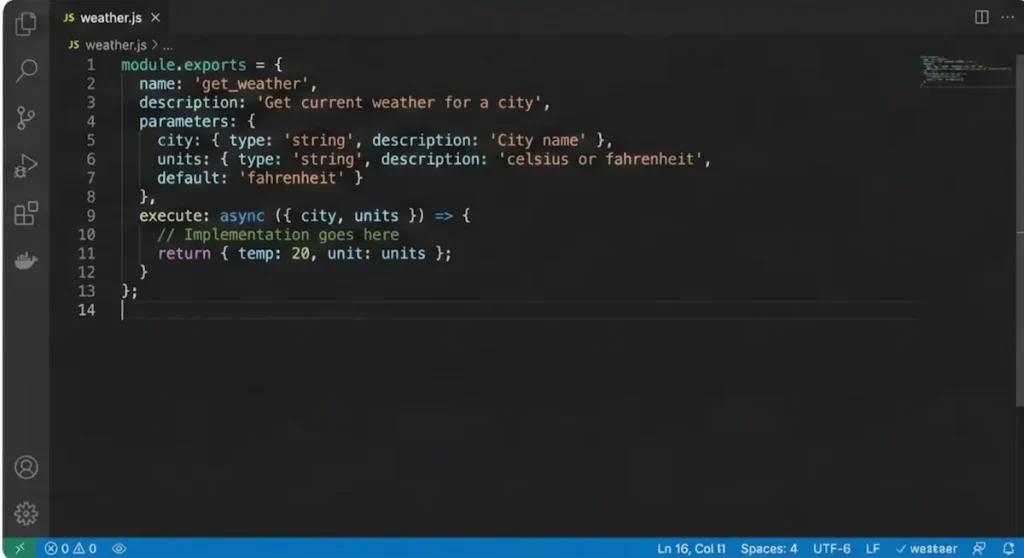
Step 1: Create a tools directory
mkdir -p ~/Documents/openclaw/tools
cd ~/Documents/openclaw/tools
Step 2: Create weather tool
Create weather.js:
/**
 * Weather Tool for OpenClaw
 * Fetches current weather for any city
 */

const axios = require('axios');

module.exports = {
  name: 'get_weather',
  description: 'Get current weather for a city',

  parameters: {
    city: {
      type: 'string',
      description: 'City name (e.g., "San Francisco")',
      required: true
    },
    units: {
      type: 'string',
      description: 'Temperature units: "celsius" or "fahrenheit"',
      required: false,
      default: 'fahrenheit'
    }
  },

  async execute({ city, units = 'fahrenheit' }) {
    try {
      // Using OpenWeather API (get free key at openweathermap.org)
      const apiKey = process.env.OPENWEATHER_API_KEY;
      const unitsParam = units === 'celsius' ? 'metric' : 'imperial';

      const response = await axios.get(
        `https://api.openweathermap.org/data/2.5/weather?q=${city}&units=${unitsParam}&appid=${apiKey}`
      );

      const data = response.data;

      return {
        city: data.name,
        temperature: data.main.temp,
        feels_like: data.main.feels_like,
        conditions: data.weather[0].description,
        humidity: data.main.humidity,
        wind_speed: data.wind.speed,
        units: units
      };

    } catch (error) {
      throw new Error(`Failed to fetch weather: ${error.message}`);
    }
  }
};
Step 3: Install dependencies
npm install axios
Step 4: Register the tool
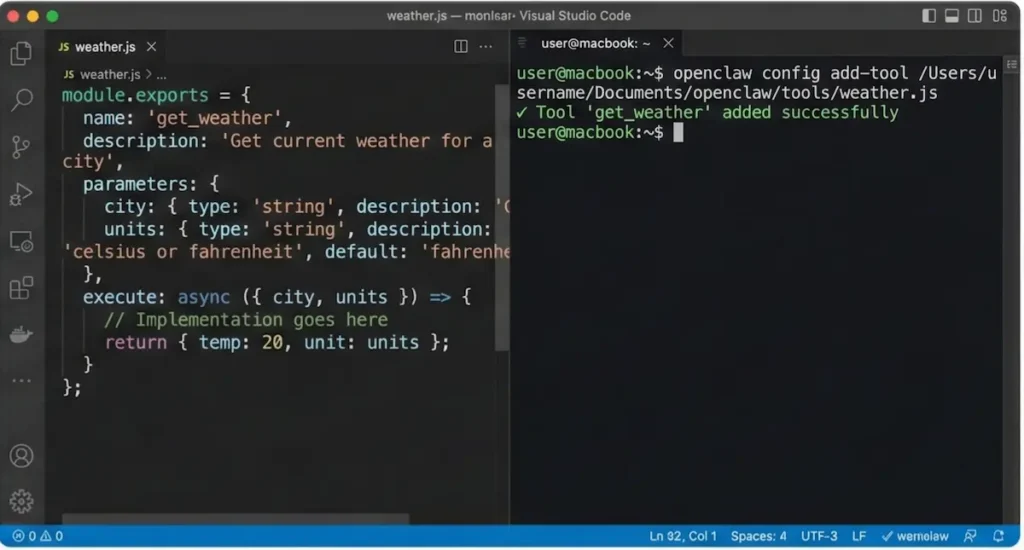
openclaw config add-tool ~/Documents/openclaw/tools/weather.js
Step 5: Set your API key
# Get free key from openweathermap.org
export OPENWEATHER_API_KEY="your_key_here"
Step 6: Use the tool
openclaw
You ▸ What's the weather in Tokyo?

Claude ▸ Let me check the current weather for you.

[MCP: get_weather({"city": "Tokyo", "units": "celsius"})]

Current weather in Tokyo:
- Temperature: 18°C (feels like 17°C)
- Conditions: Partly cloudy
- Humidity: 65%
- Wind: 12 km/h

It's a pleasant day in Tokyo with mild temperatures and
partly cloudy skies.
Claude automatically:
- Recognized you wanted weather information
- Called your custom
get_weathertool - Passed the city parameter
- Received the data
- Formatted it nicely for you
Example 2: Email Tool (SendGrid)
Create email.js:
const sgMail = require('@sendgrid/mail');

module.exports = {
  name: 'send_email',
  description: 'Send an email via SendGrid',

  parameters: {
    to: {
      type: 'string',
      description: 'Recipient email address',
      required: true
    },
    subject: {
      type: 'string',
      description: 'Email subject line',
      required: true
    },
    body: {
      type: 'string',
      description: 'Email body content',
      required: true
    }
  },

  async execute({ to, subject, body }) {
    sgMail.setApiKey(process.env.SENDGRID_API_KEY);

    const msg = {
      to: to,
      from: '[email protected]',
      subject: subject,
      text: body,
      html: body.replace(/\n/g, '<br>')
    };

    try {
      await sgMail.send(msg);
      return { success: true, message: `Email sent to ${to}` };
    } catch (error) {
      throw new Error(`Failed to send email: ${error.message}`);
    }
  }
};
Usage:
You ▸ Send an email to [email protected] saying our meeting is
      confirmed for Thursday at 2pm

Claude ▸ I'll send that email for you.

[MCP: send_email({
  "to": "[email protected]",
  "subject": "Meeting Confirmation - Thursday 2pm",
  "body": "Hi John,\n\nThis confirms our meeting for Thursday at 2pm.\n\nLooking forward to it!\n\nBest regards"
})]

✓ Email sent successfully to [email protected]
Part 7: Real-World Use Cases
Use Case 1: Code Repository Analysis
Scenario: Analyze your entire codebase for bugs, improvements, security issues.
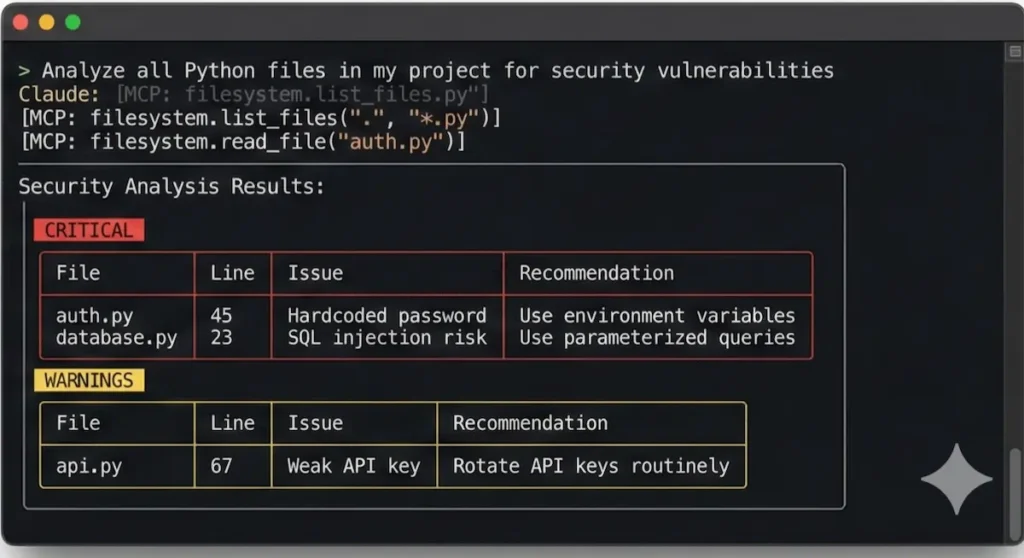
You ▸ Analyze all Python files in my project for security
      vulnerabilities

Claude ▸ I'll scan through your Python files.

[MCP: filesystem.list_files(".", "*.py", recursive=true)]
[MCP: filesystem.read_file("auth.py")]
[MCP: filesystem.read_file("database.py")]
[MCP: filesystem.read_file("api.py")]

Security Analysis Results:

🔴 CRITICAL:
1. auth.py (Line 45): Password stored in plaintext
   → Recommendation: Use bcrypt or argon2

2. database.py (Line 23): SQL injection vulnerability
   → Recommendation: Use parameterized queries

🟡 WARNINGS:
1. api.py (Line 67): API key hardcoded
   → Recommendation: Use environment variables

2. auth.py (Line 102): Weak session timeout (24 hours)
   → Recommendation: Reduce to 2 hours

Would you like me to create a file with all recommended fixes?
Use Case 2: Data Pipeline Automation
Scenario: Daily sales report generation
You ▸ Create a daily sales report from the database and email
      it to the team

Claude ▸ I'll generate the report and send it.

[MCP: database.query("sales", "SELECT ...")]
[MCP: filesystem.create_file("daily_report_2026-01-30.md", ...)]
[MCP: send_email({
  to: "[email protected]",
  subject: "Daily Sales Report - Jan 30, 2026",
  body: "..."
})]

✓ Report generated: daily_report_2026-01-30.md
✓ Email sent to [email protected]

Summary:
- Total sales today: $45,230
- New customers: 12
- Top product: Enterprise Plan ($18,000)
- vs Yesterday: +15% revenue

The report has been saved and emailed to the team.
Use Case 3: Content Creation Workflow
Scenario: Generate blog posts from research
You ▸ Research recent AI news, write a blog post summary, and
      save it as draft.md

Claude ▸ I'll research and write that for you.

[MCP: web_search("latest AI news 2026")]
[MCP: filesystem.create_file("draft.md", ...)]

✓ Research completed (15 sources)
✓ Blog post written (1,200 words)
✓ Saved to: draft.md

The post covers:
- OpenAI's GPT-5 announcement
- Google's Gemini Ultra update
- EU AI regulation changes
- 5 emerging AI startups

Ready to review and publish!
Part 8: Advanced Configuration
Performance Tuning
Optimize for speed:
{
  "model": "claude-haiku-4-20250108",
  "maxTokens": 1024,
  "temperature": 0.3,
  "caching": {
    "enabled": true,
    "ttl": 3600
  }
}
Optimize for quality:
{
  "model": "claude-opus-4-20250514",
  "maxTokens": 4096,
  "temperature": 0.7,
  "thinking": {
    "enabled": true
  }
}
Security Best Practices
1. Use Environment Variables for Secrets
Create .env file:
ANTHROPIC_API_KEY=sk-ant-xxx
OPENWEATHER_API_KEY=xxx
SENDGRID_API_KEY=xxx
DATABASE_PASSWORD=xxx
2. Restrict File System Access
openclaw config set filesystem.rootPath ~/Documents/openclaw/safe-zone
3. Enable Read-Only Mode for Databases
openclaw config set database.test.readOnly true
4. Use API Key Rotation
# Rotate API keys monthly
openclaw config set apiKey sk-ant-new-key-xxx
Multi-Profile Setup
For different projects:
# Work profile
openclaw --profile work

# Personal profile
openclaw --profile personal

# Client project
openclaw --profile client-acme
Each profile has separate:
- API keys
- MCP servers
- Working directories
- Custom tools
Part 9: Troubleshooting
Common Issues & Solutions
Issue 1: “API key invalid”
Symptoms:
Error: Invalid API key
Solutions:
- Check key format (starts with
sk-ant-api03-) - Regenerate key in Anthropic console
- Update config:
openclaw config set apiKey sk-ant-xxx - Check billing: Ensure credits available
Issue 2: “MCP server not responding”
Symptoms:
Error: filesystem server timeout
Solutions:
# Restart MCP servers
openclaw restart-servers

# Check server status
openclaw servers status

# Rebuild server
openclaw servers rebuild filesystem
Issue 3: “Database connection failed”
Symptoms:
Error: Connection refused (PostgreSQL)
Solutions:
- Check database is running:
pg_isready(PostgreSQL) - Verify credentials:
openclaw config show - Check firewall rules
- Test connection manually:
psql -h localhost -U postgres -d myapp
Issue 4: “File not found”
Symptoms:
Error: ENOENT: no such file or directory
Solutions:
- Check working directory:
openclaw config show - Use absolute paths:
/Users/name/Documents/file.txt - Verify file exists:
ls ~/Documents/openclaw
Issue 5: High API costs
Symptoms:
- Unexpected large bills
- Costs growing rapidly
Solutions:
# Set spending limits
openclaw config set limits.daily 10  # $10/day max
openclaw config set limits.perRequest 1  # $1/request max

# Switch to cheaper model
openclaw config set model claude-haiku-4-20250108

# Enable caching
openclaw config set caching.enabled true

# Monitor usage
openclaw usage show
Part 10: Next Steps & Resources
Leveling Up Your OpenClaw Skills
Week 1: Master the Basics
- [ ] Complete this tutorial
- [ ] Set up file system and database access
- [ ] Build 1 custom tool
- [ ] Use OpenClaw daily for real work
Week 2: Build Custom Tools
- [ ] Create 3-5 custom tools for your workflow
- [ ] Learn MCP protocol in depth
- [ ] Integrate with your company’s APIs
- [ ] Share tools with team
Week 3: Advanced Automation
- [ ] Build automated workflows
- [ ] Set up scheduled tasks
- [ ] Create data pipelines
- [ ] Implement error handling
Month 2+: Community & Contribution
- [ ] Join OpenClaw Discord/GitHub
- [ ] Share your custom tools
- [ ] Contribute to open source
- [ ] Build plugins for others
Essential Resources
Official Documentation:
- OpenClaw Docs: docs.openclaw.ai
- MCP Specification: modelcontextprotocol.io
- Anthropic API Docs: docs.anthropic.com
Community:
- GitHub: github.com/openclaw/openclaw
- Discord: discord.gg/openclaw
- Reddit: r/OpenClaw
Video Tutorials:
- OpenClaw Crash Course (YouTube)
- Building MCP Servers (YouTube)
- Advanced Tool Development (YouTube)
Example Projects:
- OpenClaw Tool Library: github.com/openclaw/tools
- Community Integrations: awesome-openclaw
Useful Tool Ideas to Build
Productivity:
- Notion integration (create pages, search)
- Todoist automation (manage tasks)
- Calendar sync (Google/Outlook)
- Pomodoro timer with breaks
Development:
- GitHub auto-PR creator
- Code review assistant
- Deployment automation
- Test generator
Business:
- CRM integration (Salesforce, HubSpot)
- Invoice generator
- Meeting scheduler
- Report automation
Content:
- SEO analyzer
- Social media poster
- Image generator (DALL-E)
- Video transcription
Data:
- Excel/CSV processor
- Data visualization generator
- Analytics dashboard
- Backup automation
Conclusion: Your AI Superpower Awaits
Congratulations! You’ve just unlocked Claude’s full potential with OpenClaw. You’re no longer limited to a chatbot—you have an AI assistant that can:
✅ Access your files and databases ✅ Run code and scripts ✅ Integrate with any API ✅ Automate complex workflows ✅ Use custom tools you build
What’s Next?
The real power of OpenClaw comes from using it daily. Start small:
- Use it to read and analyze files today
- Connect to a database this week
- Build your first custom tool this month
- Share your creations with the community
Remember:
- Start simple, build complexity gradually
- Share your tools—help others learn
- Join the community—learn from others
- Experiment freely—that’s how you learn
OpenClaw is open source, which means it gets better every day as developers worldwide contribute. Your custom tools could help thousands of users.
Ready to build something amazing? Fire up OpenClaw and start creating!
openclaw
Frequently Asked Questions
Is OpenClaw free?
OpenClaw itself is free and open source. However, you need:
- Anthropic API access: Pay-as-you-go ($5-50/month typical usage)
- Third-party APIs: Some tools may require paid APIs (optional)
Total cost is usually less than Claude Pro ($20/month) if you use it moderately.
Is my data safe?
Yes. OpenClaw runs locally on your computer. Your data never leaves your machine except for:
- API calls to Anthropic (encrypted)
- External APIs your custom tools call (you control this)
All credentials are stored encrypted locally.
Can I use OpenClaw for commercial projects?
Yes! OpenClaw is MIT licensed, meaning you can use it commercially without restrictions. Many businesses use it for:
- Internal automation
- Customer tools
- Product development
- Data analysis
What’s the difference between OpenClaw and Claude.ai?
| Feature | Claude.ai | OpenClaw |
|---|---|---|
| Price | $20/month (Pro) | Pay-per-use (~$10/month) |
| File Access | Upload only | Full file system |
| Database | No | Yes (SQL, NoSQL) |
| Custom Tools | No | Unlimited |
| API Integration | No | Yes |
| Automation | Limited | Full |
| Privacy | Cloud | Local |
Can I run OpenClaw on a server?
Yes! OpenClaw works great on:
- VPS (DigitalOcean, Linode)
- Cloud servers (AWS, GCP, Azure)
- Home servers (Raspberry Pi 4+)
- Docker containers
Perfect for automation and always-on workflows.
How do I get help if I’m stuck?
- Documentation: docs.openclaw.ai
- GitHub Issues: Report bugs, request features
- Discord Community: Real-time help from users
- Stack Overflow: Tag your question with
openclaw - This Tutorial: Bookmark and reference!
Can I contribute to OpenClaw?
Absolutely! OpenClaw welcomes contributions:
- Code improvements
- Bug fixes
- Documentation
- Custom tools
- Examples and tutorials
Start here: github.com/openclaw/openclaw/blob/main/CONTRIBUTING.md
What’s the learning curve?
Beginner: 1-2 hours to get basic setup working Intermediate: 1-2 weeks to build custom tools Advanced: 1-2 months to master automation
If you can use a terminal and edit text files, you can use OpenClaw.
Does it work offline?
Partially:
- OpenClaw interface: Works offline
- Claude AI: Requires internet (API calls)
- File operations: Work offline
- Database queries: Work offline
- Custom tools: Depends on the tool
You need internet only for AI responses.
What models can I use?
All Claude models:
- Claude Haiku 4: Fast, cheap, basic tasks
- Claude Sonnet 4: Balanced, recommended
- Claude Opus 4: Most capable, expensive
You can switch anytime: openclaw config set model claude-opus-4-20250514
More OpenClaw & AI Agent Guides for 2026
- OpenClaw VPS Setup: Run Your AI Agent 24/7 for ~$6/Month
- How to Build Custom MCP Servers (Python & Node.js) — 2026 Guide
- What Is Agentic AI? Explained Simply (2026)
- AI Agents in 2026: What They’re Good At, What They Break
- Best AI Agents You Can Use Right Now (2026)
- ChatGPT vs Claude vs Gemini vs Perplexity (2026): Tested All 4
About This Tutorial: Created to help developers unlock the full potential of Claude AI through OpenClaw and the Model Context Protocol. Updated regularly as OpenClaw evolves.
Last Updated: Feb 2, 2026 Next Update: March 2026
Note: OpenClaw is an independent open-source project. This tutorial is not officially affiliated with Anthropic, though it uses the Anthropic API.